
As a developer, Claude keeps giving me more reasons not to open an IDE. The latest is that the Claude Code tab in the Claude desktop app can now run Apple's iOS Simulator in a panel right beside the conversation. Claude builds your app, launches it on a simulated iPhone, taps through it and checks its own work, and you watch the whole thing live without opening Xcode.
This post covers what the feature does, how it works under the hood, and where its limits are.
What changed
Most of my working day already happens inside the Claude desktop app. Sessions run in their own git worktrees, pull requests get opened and merged from the chat, and a built-in browser lets Claude preview and check web builds before I look at them. Native iOS work was one of the few jobs that still meant switching over to Xcode to see what the code actually did.
The new iOS Simulator pane, which is in public beta on macOS, closes that gap. According to Anthropic's documentation, when Claude builds, installs, launches or checks your app in a simulator, the pane opens automatically and streams the device screen live.
You don't need a special command to trigger it. You open your iOS project in the Code tab and phrase the request around running or verifying the app, for example:
Build the app and run it in the simulator to check the onboarding flow.From there, Claude handles the build, boots a device, installs the app, taps through the screens and reads what's on them to confirm its changes worked. If you want a specific device, you name it ("run it on the iPhone SE simulator") and Claude targets that one.
Trying it on a real job
The first time I used it wasn't on an iOS app at all. I was working through client feedback on a Webflow site, where one section scales a photo up to full screen as you scroll. In iPhone Safari the photo never quite made it: about halfway through the text at the bottom of the section, it stopped and left a black gap underneath.
The cause was Safari's toolbar. The image took its height from the screen while the address bar was still showing, and when the toolbar slid away as you scrolled, the screen got taller and the image didn't. The fix was to size the image to the full height of the section rather than the screen at the moment the page loaded.
Claude had already put that fix live on staging, though it could only check it in Chrome on my Mac, which has no collapsing toolbar to trip over. Whether the gap was gone in iPhone Safari, the browser where the bug actually lived, was still unconfirmed. So I signed in to Xcode, attached an iPhone 16 Pro simulator in the pane, and asked Claude to review the bug we'd described.
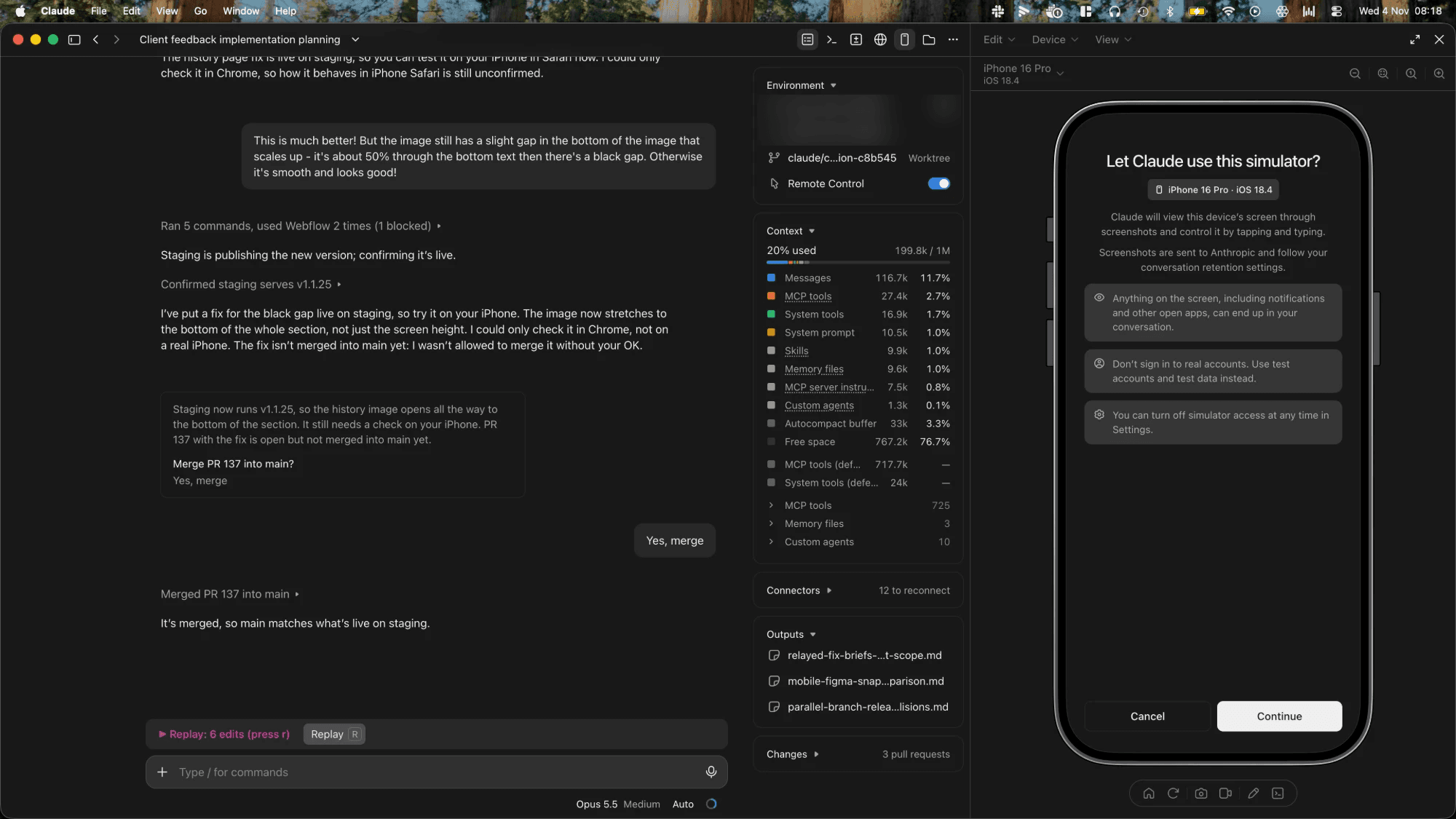
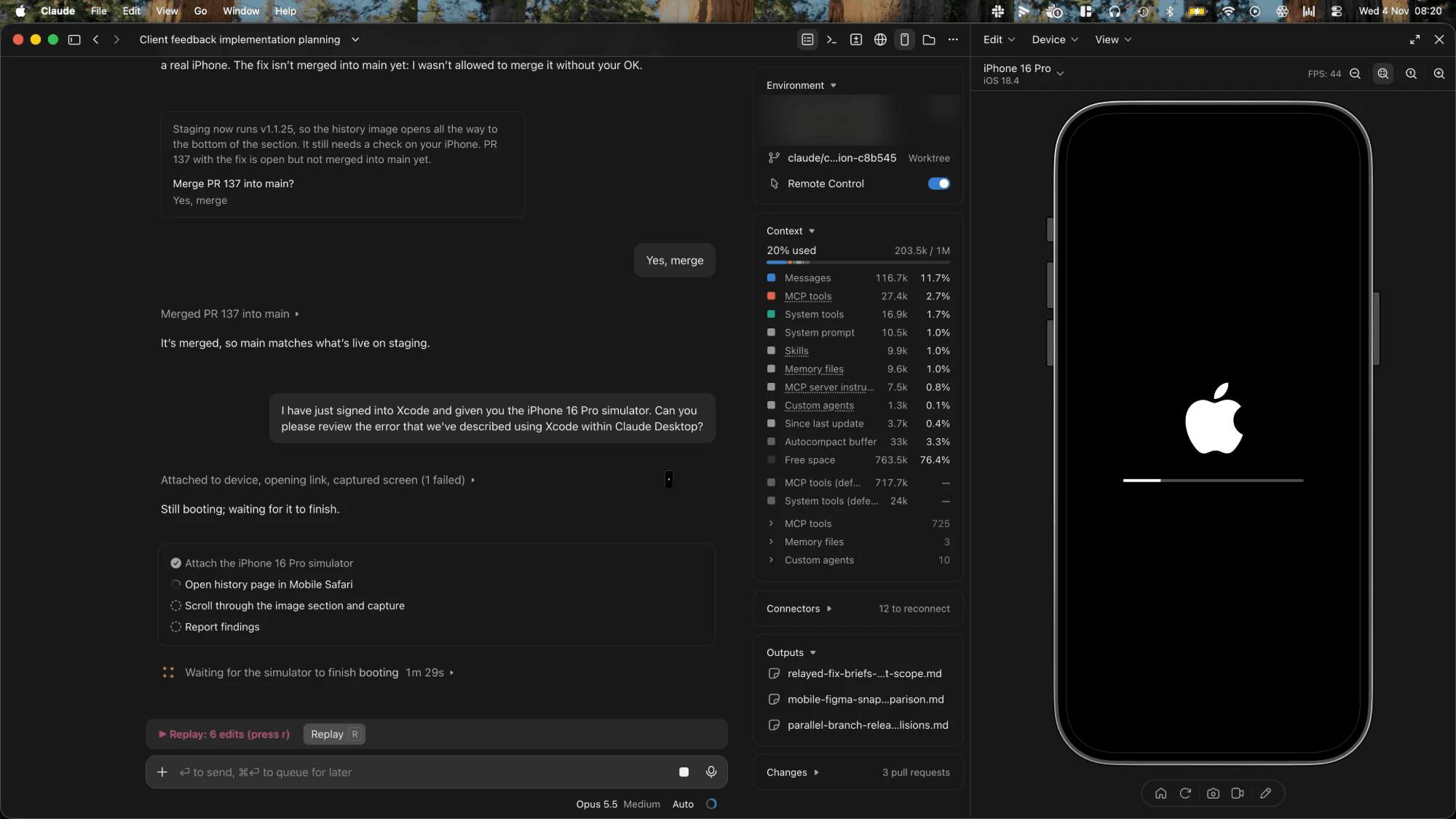
From there Claude worked through a short plan: attach the simulator, open the page in Mobile Safari, scroll to the image section and capture it, then report back. The simulator took a minute or two to boot the first time.
Once it was up, Claude swiped down the page, captured the screen several times and traced a few touches through the scroll animation. Its report was that the gap was gone: the images slide together, open to full screen, and the photo reaches the bottom of the screen whether Safari's toolbar is collapsed or showing. It also flagged what it couldn't tell me. The simulator runs on the Mac's processor, so it can't show whether the scroll feels smooth on a real phone, and it said that still needed a quick check on my iPhone.
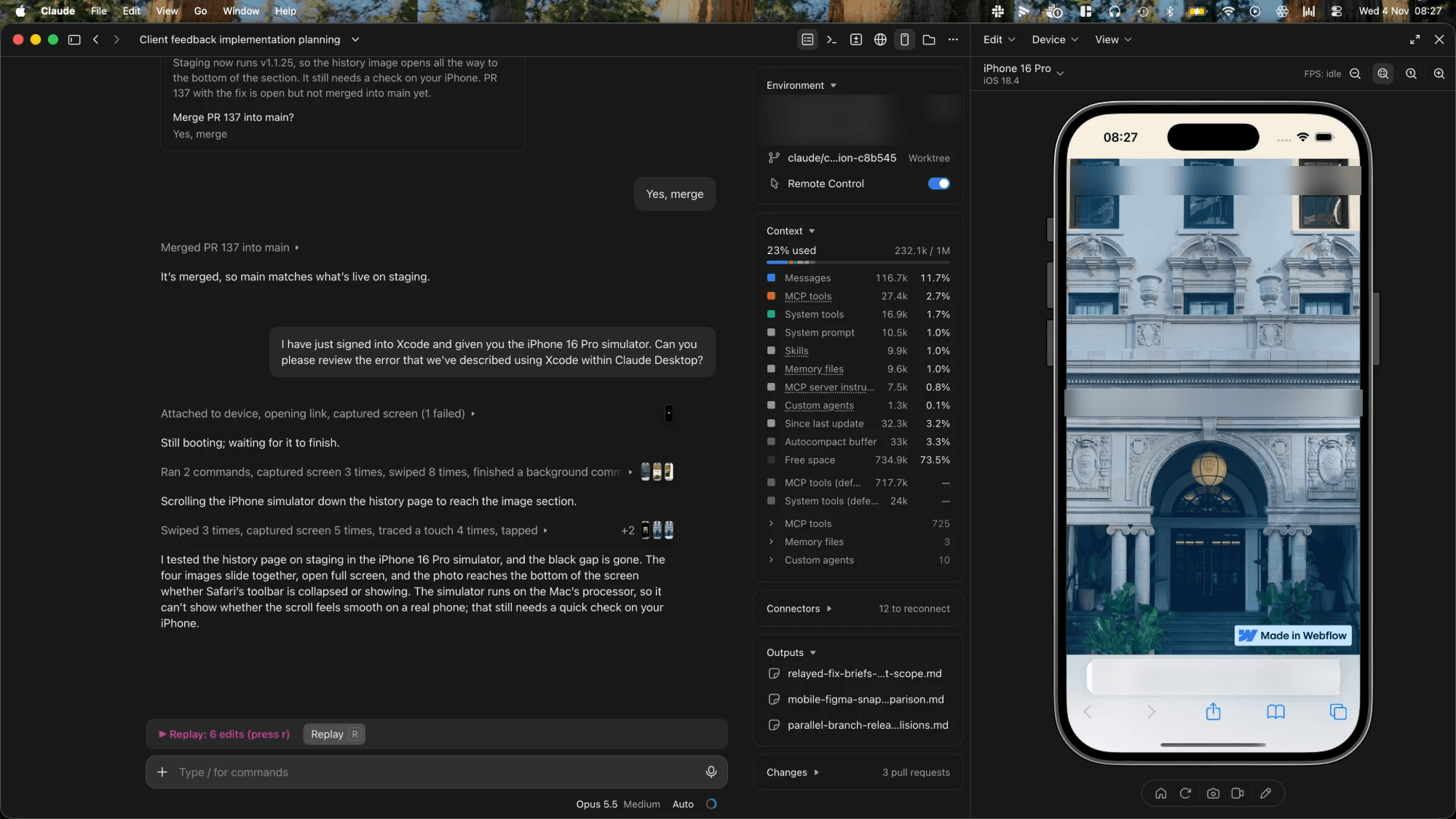
The docs pitch the pane at iOS apps, but it turns out to be just as useful for web work: it puts a real copy of iPhone Safari next to the conversation, so Claude can check a mobile bug in the browser where it actually happens.
Why it matters
Coding agents have been good at writing code for a while. They've been much weaker at seeing what that code produces. For web projects, browser tooling has narrowed that gap (I've written before about browser automation for AI agents and why it matters for agents checking their own work). Mobile has lagged behind, because the thing you need to look at lives inside a simulator that only Apple's tooling can drive.
Putting the simulator next to the conversation turns iOS work into the same loop that already works well for web: Claude changes the code, runs it, looks at the result and fixes what's wrong, all before you have to step in. You stop being the person whose job is to build, click through and report back what you saw.
It's a bit like the difference between a contractor who sends you photos of the work and one who lets you stand in the room while they do it. You can still step in at any moment, and you're no longer relaying instructions second-hand.
How it works
A few details from the docs are worth knowing, because they explain why this feels smooth rather than fiddly.
It drives the simulator directly. The pane doesn't use computer use, so it never takes over your screen or moves your mouse. Claude talks to the simulated device itself, which also means it doesn't need the macOS Accessibility and Screen Recording permissions that computer use requires.
You can drive it too. The pane is interactive. You can tap and swipe on the device screen, press hardware buttons with the usual Simulator shortcuts, rotate the device, and save screenshots or screen recordings. You and Claude share the same device, so a useful pattern is to tap through to the screen you care about and then ask Claude to check it. While Claude is driving, the pane shows a badge, so you know to keep your hands off until it clears.
Each session gets its own device. Parallel sessions don't share a simulator, so what you see in one session's pane is that session's work. Switching sessions in the sidebar switches the simulator view with it, and a session can run up to four devices. If you already run several worktree sessions side by side, this slots straight into that habit.
It tidies up after itself. Simulators Claude boots are shut down when you quit the app, archive the session, or ten minutes after you detach a device. Devices you boot yourself in Apple's Simulator app are left alone.
Permissions and privacy
Claude asks for consent the first time it uses each simulated device. After that, tapping, typing, launching and screenshotting run without further prompts, because they only touch the simulated device.
Two actions still follow your session's normal permission mode: building the app, because runs your project's build scripts on your Mac, and opening a URL on the device, because a URL can carry data off it.
One point worth taking seriously: the docs state that Claude's screenshots of the device are sent to Anthropic and kept under your normal conversation retention settings. Their advice is not to sign in to real accounts on a device Claude uses, and I'd treat that as a hard rule. Use test accounts and seed data, the same way you would on a staging environment.
Organisations can also turn the tools off centrally. The managed setting blocks Claude's simulator access while leaving the pane usable for your own taps.
Constraints and considerations
A few things to be aware of before you rely on it:
- You still need Xcode. The desktop app uses Apple's simulator tooling rather than bundling its own, so you need a Mac with Xcode and the iOS platform installed. Xcode 26.x or Xcode 27 is recommended. The difference is that Xcode becomes a dependency running in the background rather than the window you work in.
- Simulators only. Claude can't control a physical iPhone or iPad. For on-device testing you still run the build from Xcode yourself and describe what you see, or attach a screenshot for Claude to work from.
- Local sessions only. Cloud and SSH sessions run on machines that can't reach the simulators on your Mac.
- It's a beta. The pane is in public beta, and the docs note it isn't available to Enterprise organisations with a HIPAA configuration enabled.
- Simulator behaviour isn't device behaviour. This isn't new to Claude, but it's easy to forget when the loop feels this complete. Performance, push notifications, camera and some hardware-dependent features behave differently on a real phone, so a simulator pass is a strong first check rather than a release sign-off.
Closing thoughts
More and more of the job that used to need a dedicated editor moves into the conversation. Web previews, pull requests, staging checks and now native iOS testing all happen in the same window, with Claude doing the clicking and me deciding what's right.
I don't think IDEs are going away. Some debugging, profiling and on-device work will keep needing them for a while yet. What's changing is that the IDE is becoming something the agent uses on my behalf, rather than the place I spend my day.
If you're weighing up how AI coding tools fit into your own team's workflow, or you want help building with them, get in touch.


